How to run D&D battlemaps on a TV or projector
How to run D&D battlemaps on a TV or projector: screen setup, grid scale, the best display method, and where to get maps that stay sharp at the table.
Running battlemaps on a screen turns an in-person D&D game into something that feels like a video game without losing the tabletop. The most reliable setup is a TV laid flat in or under your table, connected to a laptop, displaying a high-resolution map scaled so each grid square is one inch — the same size as physical maps, so your minis just work. A projector is the alternative when you want a bigger play area. This guide covers the trade-offs, the exact settings that matter, and how to get maps that look crisp instead of pixelated when someone leans in to inspect the room.
TV versus projector: which to use
Both work. They fail in different ways.
A flat TV is the simpler, sharper option. You lay a 49 to 55 inch screen flat in a recessed table or under a sheet of glass or acrylic, and minis sit directly on it. It’s bright enough for a normal lit room, the image is crisp, and setup is close to plug-and-play. The limits are size — you’re capped at the screen’s dimensions — and weight, since a big TV laid flat needs proper support.
A ceiling projector points straight down onto the tabletop. It covers a much larger area and keeps your actual table surface, so minis sit on wood, not glass. The costs are real, though: you mount it overhead, calibrate the keystone so the image isn’t a trapezoid, and dim the room because projectors wash out in bright light.
For most home games, a flat TV is the easier and better-looking win. Choose the projector when table size matters more than simplicity.
Get the grid scale right
This is the setting that makes or breaks a screen setup. You want one grid square on screen to measure one inch, so standard 25–28mm miniatures occupy a square exactly like they do on a printed battlemap.
You set this by loading the map in your display software and scaling it until a ruler held to the screen reads one inch per square. Most virtual tabletops include a calibration or “TV mode” specifically for this, where you tell it your screen’s physical size and it scales automatically. Get this right once and every correctly-built map you load afterwards is the right size.
Skip it and minis either swim in oversized squares or get crammed into tiny ones, and movement distances stop matching the rules.
Use gridless, high-resolution maps
Two map properties matter most on a screen.
Resolution. A big screen is unforgiving. A map that looks fine on a phone turns to mush when it’s blown up to 55 inches and a player leans in. Use maps built at 70 to 140 pixels per square, and on a 4K TV lean toward the higher end. Steer clear of anything upscaled from a small original — it betrays itself the moment someone zooms in.
No baked-in grid. Let your software draw the grid so it lines up perfectly with your one-inch calibration. A grid baked into the image almost never matches the screen’s grid exactly, and you get the doubled-line effect that looks broken.
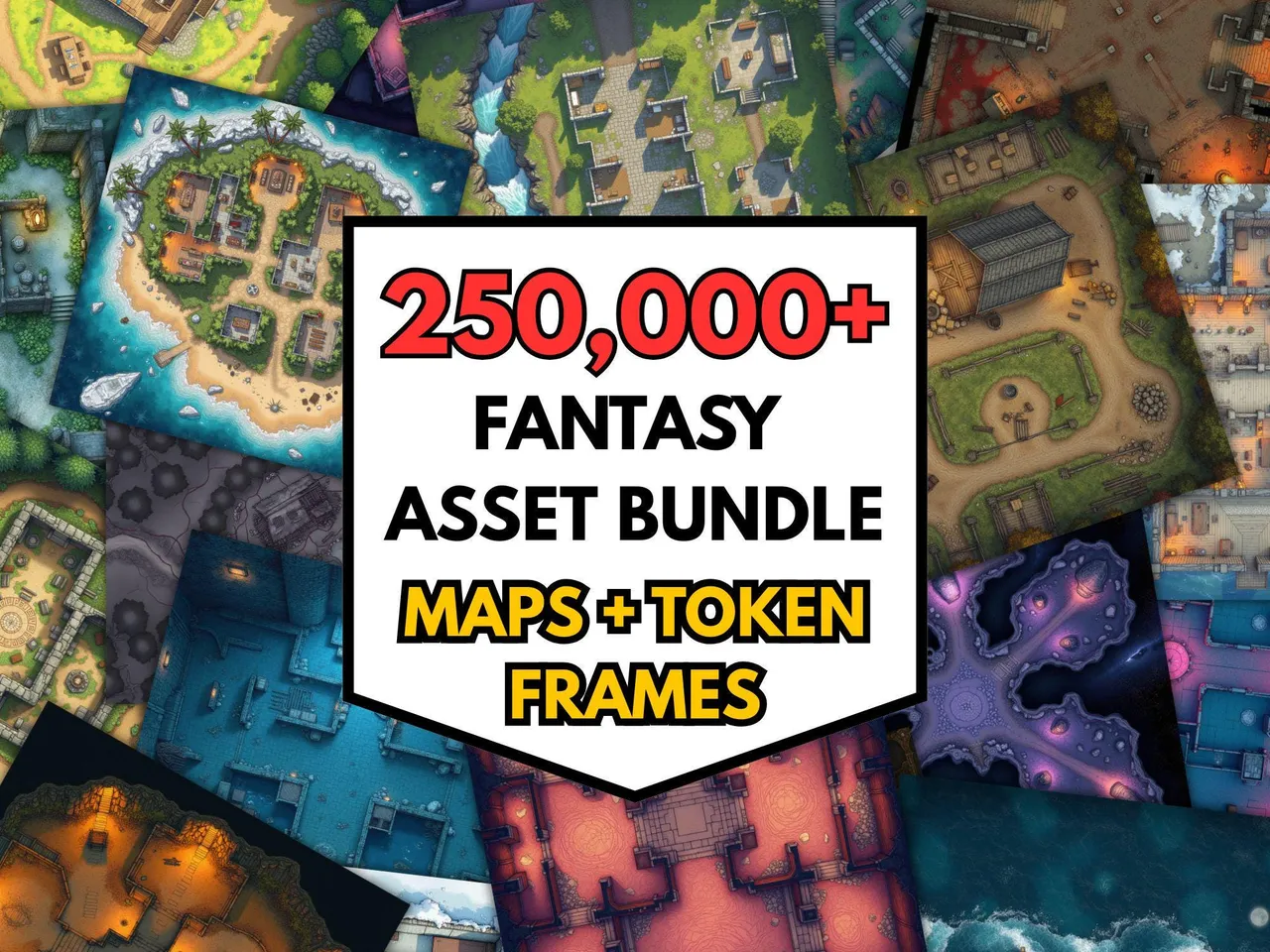
This is where a deep, properly-formatted map library pays for itself, because you never know whether tonight’s improvised scene needs a tavern, a crypt, or a frozen lake.
Software: how to actually drive the screen
You have three routes, from simplest to most powerful.
A plain image viewer. Connect a laptop, open the map full-screen on the TV, and pan or zoom with the trackpad. Zero cost, fully offline, no learning curve. The downside is no fog of war and no automatic grid — fine for theatre-of-the-mind-plus-map play.
A free virtual tabletop in TV mode. Tools like Foundry and others can output a clean player view to the TV while you control everything from your laptop. You get grid snapping, fog of war, and dynamic reveals. Our own tabletop display tool is built for exactly this — push a map to a second screen and reveal it as the party moves, with no subscription.
Local map utilities. If your purchased maps come as large single images, a map splitter helps you print or tile them, and a map stitcher joins multi-part maps into one scene before you display it. A grid overlay tool adds a clean one-inch grid to any gridless map.
For revealing the map gradually, a fog of war tool keeps unexplored rooms hidden until the party arrives, which preserves the surprise that a fully-visible map throws away.
A no-fuss starter setup
If you want the shortest path to a working table screen:
- Lay a 50-inch TV flat, protected by a sheet of acrylic so minis and drinks don’t touch the panel.
- Connect a laptop by HDMI and mirror or extend the display.
- Open your map in the tabletop display tool or a VTT’s TV mode, and calibrate to a one-inch grid once.
- Load a high-resolution gridless map, drop your minis on, and play.
That’s the entire setup. It runs offline, costs nothing in software, and the only real spend is the maps themselves — which, bought as a library, work out to pennies each. Pair it with a printed-map fallback for game-night emergencies and you’re covered either way. For a print-first workflow instead, see our guide on running battlemaps for Roll20 and Foundry, which covers the same maps in a VTT context.
Calibrate the screen on free maps. Getting one grid square to measure a real inch takes a few attempts. Use the 100 free battlemaps to dial the scaling in before you put a purchased map on the display.
Frequently asked questions
- Is a TV or a projector better for D&D battlemaps?
- A TV laid flat in the table is sharper, simpler, and needs no dark room, but it's limited to around 55 inches. A ceiling projector covers a larger area and keeps minis on a normal table surface, but needs mounting, calibration, and dimmer lighting. For most home games, a flat TV is the easier win.
- What size should a grid square be on a TV map?
- Aim for a one-inch grid square so standard 25–28mm minis fit naturally, matching physical battlemaps. You set this by scaling the map in your display software until an on-screen square measures one inch with a ruler. Most virtual tabletops have a calibration setting for exactly this.
- How do I display a battlemap on my TV for D&D?
- Lay a TV flat or mount it under glass, connect a laptop or use a VTT's TV mode, then load a gridless map and scale it to a one-inch grid. Free tools can pan and zoom the image so you reveal the map as the party explores. Keep the file high resolution so it stays sharp up close.
- What resolution do battlemaps need for a TV?
- Use maps at 70 to 140 pixels per square. On a 4K TV a large scene benefits from the higher end, because players lean in close and low-resolution maps turn blurry. Avoid maps upscaled from small originals, which look fine zoomed out and fall apart on a big screen.
- Do I need internet to run maps on a TV?
- No. You can run battlemaps fully offline with an image viewer or local map software on a laptop connected to the TV. Downloaded map files mean no buffering, no subscription, and no dependence on a virtual tabletop's servers during your session.
Keep reading
From the shop
Battlemaps, spell cards, and magic item cards, ready to print.
Browse MakeMythic on Etsy →