How to import battlemaps into Foundry VTT
A step-by-step guide to importing battlemaps into Foundry VTT: grid sizing, why gridless wins, aligning the scene, walls and lighting, UVTT files, and keeping performance smooth.
Foundry VTT is the most powerful of the virtual tabletops, and that power is exactly why new DMs find the first import intimidating. The good news is that getting a battlemap into a Foundry scene cleanly comes down to a handful of steps and one rule about grids that, once you understand it, makes every future import trivial. This is the Foundry-specific deep dive. If you also run Roll20, our Roll20 and Foundry battlemaps guide covers the cross-platform basics.
The one rule: import gridless, every time
Before any of the steps, understand this, because it prevents the most common import headache. Foundry draws its own grid on top of whatever image you give it. So you want the image to have no grid baked in.
If you import a map with a grid already printed on it, you end up with two grids: the artist’s, and Foundry’s, almost never perfectly aligned. You get that doubled, slightly-off look that’s genuinely hard to fix and looks amateurish on a shared screen. A gridless map sidesteps the whole problem. Foundry’s grid lays straight over it, you can toggle it off whenever you want theatre-of-the-mind, and resizing never breaks the squares.
Good map packs ship a gridless version for exactly this reason. Always reach for it when importing into a VTT.
Step by step: importing a map into a scene
Here’s the core workflow. It takes a couple of minutes once you’ve done it once.
- Upload the image. Drop the gridless map into your world’s data folder using Foundry’s file picker, or drag it straight into a new scene.
- Create a new scene. In the Scenes sidebar, create a scene and set the background to your uploaded image.
- Set the grid size. This is the step that matters. Open scene configuration and set the grid size to the map’s pixels per square. Most VTT-ready maps are 70 pixels per square, so you enter 70. A higher-resolution map at 140 pixels per square uses 140.
- Let Foundry resize the scene. After you change the grid size and save, Foundry asks whether you want to change the scene dimensions to match. Click yes. The scene now matches the map’s real dimensions in squares.
- Check the alignment. The grid overlay should sit cleanly over the map. If it’s slightly off, use the grid configuration tool to nudge the offset until a known feature (a 10-foot doorway, a 30-foot room) spans the right number of squares.
That’s the whole import. Background in, grid size set, scene resized, alignment checked.
Walls, doors and dynamic lighting
A map on its own is just an image. What makes Foundry special is dynamic lighting, where walls block sight and movement, doors open and close, and light pools realistically. This takes one more pass.
Use the Wall Tool to trace walls directly onto the scene. Click to drop wall segments along every solid edge, then place door segments where you want openings the party can open and close. It’s faster than the equivalent on other VTTs, and once a scene is walled, line of sight and fog of war work automatically.
Add light sources with the Lighting Tool: torches, braziers, a glowing rune. Set the ambient darkness in scene config and the lights do the rest. For a first scene, you don’t have to wall everything. Wall the outer edges and the key interior rooms, and you’ve got most of the benefit for a fraction of the effort.
The shortcut: UVTT files
If you want walls and lighting without drawing them by hand, look for Universal VTT files. A .dd2vtt or .uvtt file bundles the map image together with all the wall, door and light data in a single package.
Imported with a community module such as the Universal Battlemap Importer, a UVTT file builds the entire scene for you: media uploaded, grid set, walls placed, lights positioned, doors working, all in one click. If a map pack advertises itself as “Foundry-ready” or “UVTT”, this is what it means, and it turns a ten-minute walling job into a few seconds. Whether you need it depends on your style. Plenty of DMs prefer to wall scenes themselves for control, but for prep-light tables UVTT is a genuine time-saver.
Keeping performance smooth
Foundry runs in the browser, so map file size affects how snappily a scene loads for your players. A 30-by-30 scene at 70 pixels per square is around 2100 by 2100 pixels, which is light. A huge 100-by-100 setpiece at high resolution can be 7000 pixels across and several megabytes, which a player on a weak connection will feel.
Two habits keep things fast. Prefer WebP over PNG where your map pack offers it, since it’s a fraction of the size at the same quality. And don’t reach for 140 pixels per square unless your players zoom in constantly; 70 is sharp enough for almost every table and half the weight. Match the resolution to how the map is actually used and Foundry stays responsive.
The MakeMythic Foundry-ready collection
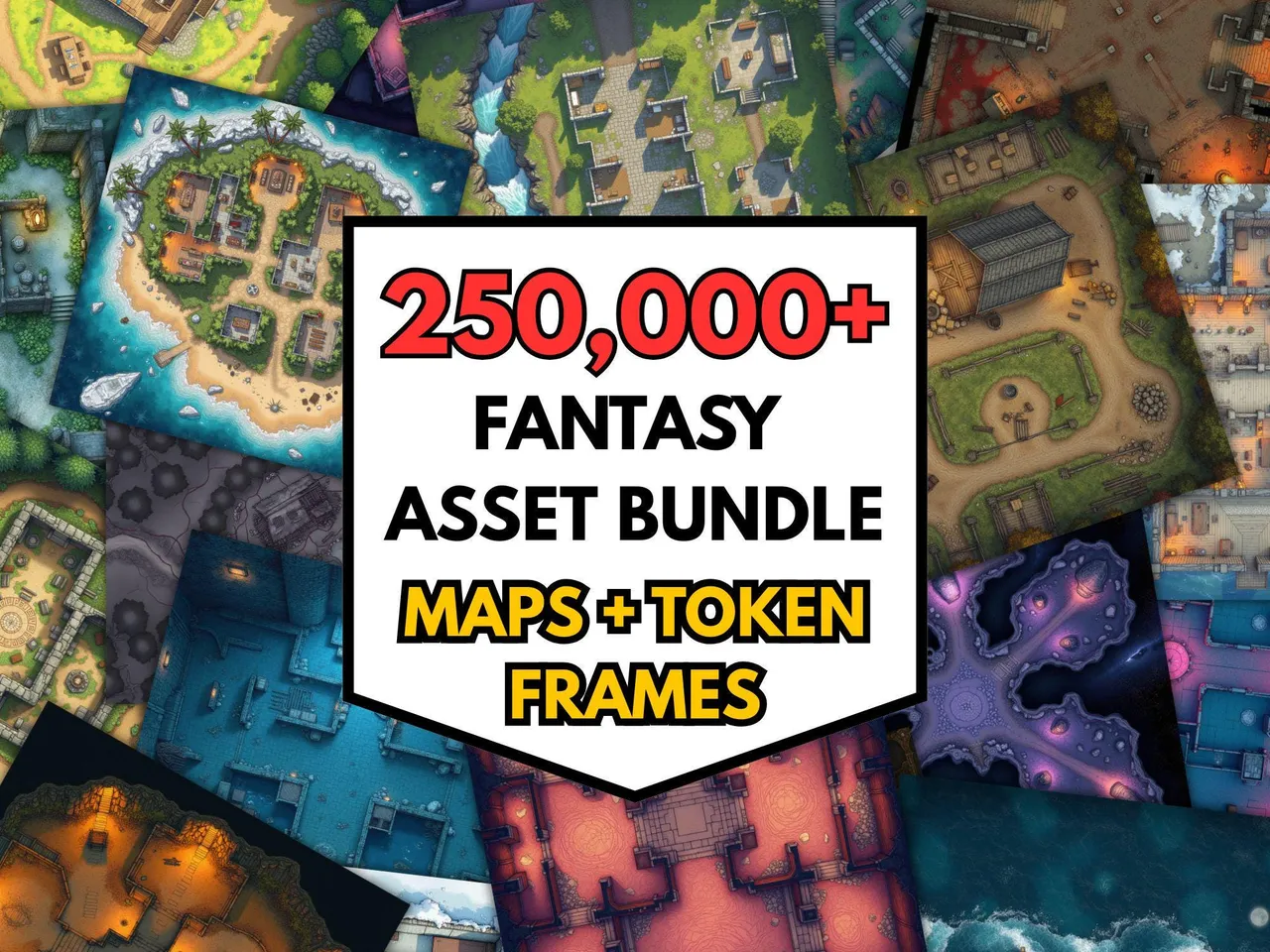
The 250,000+ RPG Battlemaps Mega Bundle ($40 $12.00) is formatted for exactly this workflow: high resolution, gridless, and ready to drop into a Foundry scene without the doubled-grid problem. The library spans every biome and location, so once it’s in your data folder you’re importing from your own collection instead of hunting the marketplace mid-prep.
It’s an instant-download file, so the maps are in your Foundry world the same evening you buy the bundle.
Frequently asked questions
- What grid size should I use for battlemaps in Foundry VTT?
- Set the grid size to match the map's pixels per square. Most VTT maps are 70 pixels per square, so you set Foundry's grid size to 70; higher-resolution maps at 140 pixels per square use a grid size of 140. After setting it, Foundry asks whether to change the scene dimensions to match, and you click yes.
- Should I use a gridded or gridless map in Foundry?
- Use the gridless version. Foundry draws its own grid on top of the scene, so importing a map with a grid baked in gives you two overlapping grids that rarely line up. A gridless map lets Foundry's grid sit cleanly over it and lets you toggle the grid off for theatre-of-the-mind moments.
- How do I align a battlemap to Foundry's grid?
- Open scene configuration, set the grid size to the map's pixels per square, then use the grid configuration tool to nudge the offset and size until the overlay lines up with the map's features. If the map has no grid lines, size it so a known distance (say a 30-foot room) spans the right number of squares and the rest follows.
- What are UVTT or dd2vtt files in Foundry?
- A Universal VTT file (.dd2vtt or .uvtt) bundles the map image together with wall, door and light data in one package. Imported with a module like the Universal Battlemap Importer, it builds a fully walled and lit scene automatically, saving the manual wall-drawing step. If a map pack advertises 'Foundry-ready' it usually means UVTT support.
- Where can I get battlemaps formatted for Foundry VTT?
- MakeMythic on Etsy sells a 250,000+ battlemap bundle formatted for VTT use: high resolution, gridless, and ready to import into Foundry without alignment problems. It's an instant-download file, so you can drop maps into your scenes the same day.
Keep reading
From the shop
Battlemaps, spell cards, and magic item cards, ready to print.
Browse MakeMythic on Etsy →