How to add custom monster tokens to Roll20 and Foundry
How to add custom monster tokens to Roll20 and Foundry VTT: pixel sizes, transparent PNGs, default tokens, and where to get free VTT tokens.
A virtual tabletop is only as readable as its tokens. Grey circles with names on them work, but players track a fight far better when the ogre looks like an ogre. Getting custom tokens into Roll20 and Foundry is straightforward once you know the two things that trip people up: the image format, and the difference between dropping a picture on a map and setting a creature’s default token. This guide covers both, plus sizing, bulk imports, and where to get token art.
Get the image right first
Most token problems are image problems, not VTT problems.
Use a transparent PNG. A round token saved as JPG comes with a white square around it, which looks broken on any map that is not white. PNG supports transparency; JPG does not. If you are managing a large library and your VTT supports it, WebP gives you the same transparency at a smaller file size — Foundry handles WebP natively.
Size it at roughly 256-400px square. A medium creature does not need more. Both platforms scale tokens to the grid, so a 2000px image gains you nothing visible and costs you scene load time. For a library of a few hundred tokens, that difference is significant.
Keep it square. A non-square image gets stretched or letterboxed into a square grid cell. Crop to a square canvas with the creature centred before you upload.
Add a border if the art does not have one. A ring around the token separates it from a busy map and makes it obvious at a glance which side a creature is on. Free tools like RPG Token Maker and Token Maker will do this in a browser, and our own token maker will crop, border and export at the right size without an upload.
Adding tokens in Roll20
There are two levels here, and skipping the second is the mistake almost everyone makes at first.
Dropping an image on the map
Drag the image file directly onto the map, or upload it into your Art Library and drag it from there. Done — you have a token on the board.
This is fine for scenery and one-off props. It is the wrong approach for a creature you will use repeatedly, because the token has no link to a character sheet, so no HP bar, no stats, no rolls.
Setting a default token (the part that matters)
Per the Roll20 community forums, the correct workflow is:
- Create the creature in the Journal as a character.
- Drag your token image onto the map and select it.
- Open the character sheet, find the default token box, and click Use Selected Token.
- Save.
From then on, dragging that character out of the Journal produces the right token, already linked to the sheet, with bars configured. For a monster you will use across a campaign, this five-second step saves you re-doing the setup every encounter.
Set the bars while you are there. Link bar 1 to HP on the default token, and every copy you drag out will track damage without further setup.
Adding tokens in Foundry VTT
Foundry’s equivalent concept is the prototype token — the template every placed copy of an actor inherits.
- Get the images into your world. Either drop the files into the world’s data folder on disk, or use the File Browser in the Foundry interface to upload them.
- Open the actor, go to the Prototype Token tab.
- Set the image path to your token.
- Set the size to match the creature’s size category: 1x1 for medium, 2x2 for large, 3x3 for huge, 4x4 for gargantuan.
- Set the display bars and name visibility while you are in there.
Changing the prototype token updates every future copy, not the ones already placed on scenes — those you update individually or delete and re-drag.
For bulk imports, dropping files into the data folder is much faster than uploading one at a time through the interface. Organise into subfolders by creature type before you copy them across; Foundry’s file browser is not a search engine.
Match token size to creature size
This is the detail that makes a fight readable. A hill giant on a 1x1 token looks like a big humanoid; on a 2x2 it occupies the space it actually occupies, and suddenly reach, movement and area-of-effect resolve correctly without anyone arguing.
- Tiny and small: 1x1 (visually smaller art within the square)
- Medium: 1x1
- Large: 2x2
- Huge: 3x3
- Gargantuan: 4x4
Foundry sets this on the prototype token. Roll20 handles it by dragging the token’s corner to the right number of squares before you save it as the default.
Name and organise the library before it grows
A hundred tokens called token_final_2.png is a problem you only get to solve once, painfully. Decide a convention early:
Name by creature, not by source. goblin-archer.png, not img_4471.png. Both VTTs search filenames, so a good name is the difference between finding a creature in two seconds and scrolling.
Prefix by type or CR if you run big libraries. undead-ghoul.png groups alphabetically in a way that matches how you think during prep.
Fold variants into the name. orc.png, orc-boss.png, orc-shaman.png keeps a family together.
Mirror the structure in folders. Foundry’s file browser lists directories, so tokens/undead/, tokens/beasts/, tokens/npcs/ is worth the five minutes it costs.
Player-facing settings worth setting once
Both platforms let you control what players see, and the defaults are rarely what you want for monsters.
Hide the name on monster tokens, or players read “Ancient Red Dragon” before the reveal lands. Set name display to “on hover for owner” or off entirely.
Show a health bar, not a number. Players get a sense of how the fight is going without knowing that the ogre has exactly 7 HP left, which changes how they play in a way most DMs would rather avoid.
Set vision and light on the token, not the scene, for anything with darkvision. It saves rebuilding the setup on every new map.
Decide on dead-token behaviour. Both VTTs can overlay a marker on a defeated creature. Turning that on means the board stays readable during a long fight instead of you deleting tokens and losing track of what died where.
Where to get token art
Free packs. MakeMythic gives away 20 bordered monster tokens free on Patreon, with colour-background versions for the screen, white-background versions for printing, and unbordered portraits for handouts and NPC panels. They match the free monster card set, so the same creature can be a token online and a card at the table.
Make your own. Any artwork you have the right to use becomes a token in about a minute with a browser token maker. This is the route for player characters, where the art is personal.
Buy a library. Worth it when you want consistency — a set where every token shares a border style looks deliberate in a way a scraped collection never does.
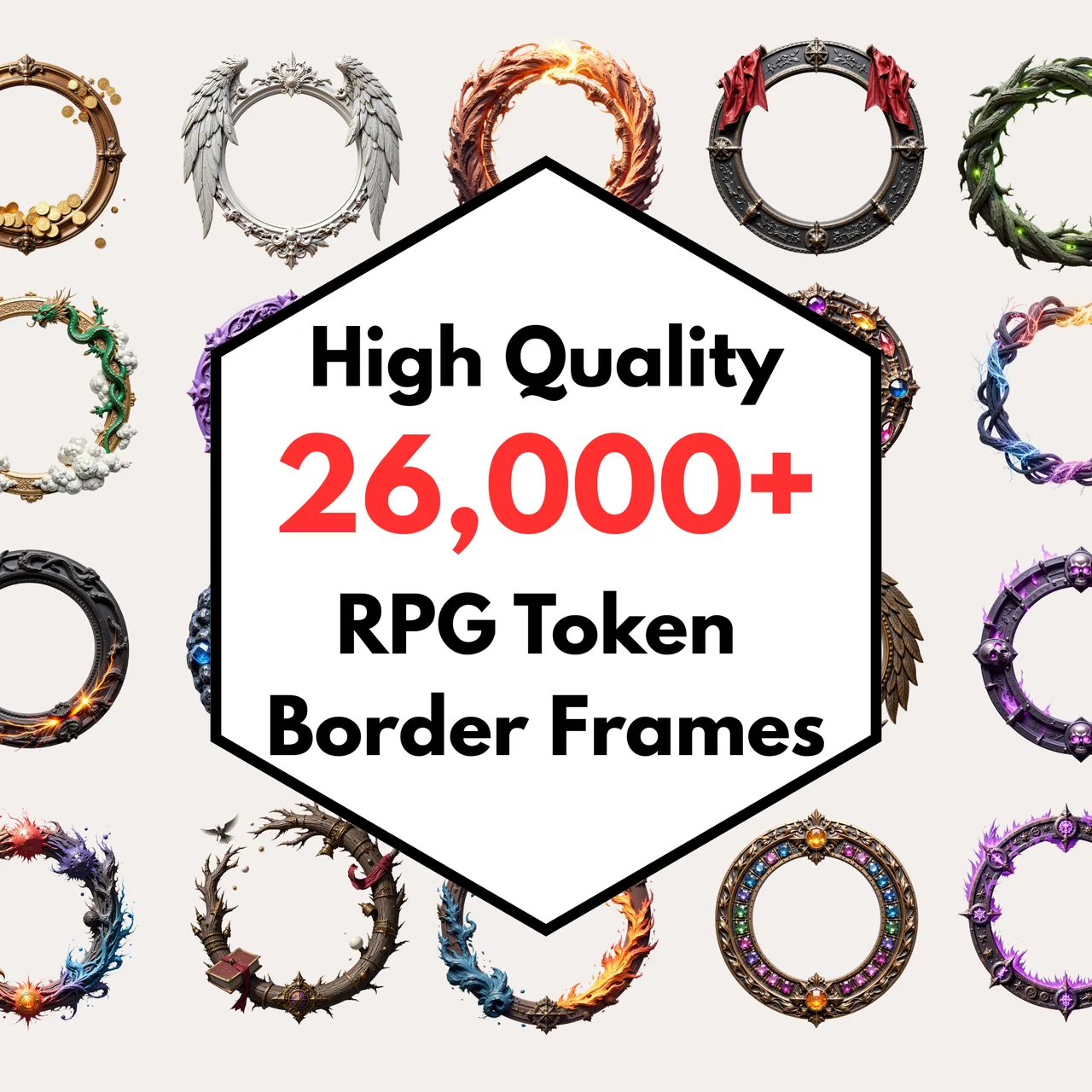
The 600+ Token Borders Bundle ($43 $12.90) is the frames rather than the creatures — drop your own art into a consistent border set so a party of six characters and forty monsters all look like they belong to the same game. If you want the creatures themselves, the Monster Cards Bundle ($88 $26.40) includes tokens for every SRD creature alongside the printable cards.
Tokens are half the picture
The other half is the map underneath them. If you are setting up a scene from scratch, how to import battlemaps into Foundry VTT covers getting the grid aligned so your correctly-sized tokens land on correctly-sized squares, and Roll20 versus Foundry for battlemaps is worth reading if you are still choosing a platform.
For the maps themselves, the free grid overlay tool will add a correctly-scaled grid to any image before you upload it, and the map splitter breaks oversized maps into tiles a VTT will actually accept.
A quick checklist
Before you upload a batch:
- Transparent PNG or WebP, never JPG
- Square canvas, creature centred
- 256-400px for medium creatures
- Bordered, so it reads against a busy map
- Set as default or prototype token, not just dropped on the map
- Token size set to the creature’s size category
Six checks, and your tokens will behave correctly for the rest of the campaign.
Frequently asked questions
- What size should VTT tokens be in pixels?
- Around 256-400px square for a medium creature is plenty. Roll20 scales tokens to the grid regardless, and Foundry works well with 400px for a standard 1x1 token. Going much above 512px just makes your scene slower to load without looking better.
- Should VTT tokens be PNG or WebP?
- PNG if you need transparency around the border, which most bordered tokens do. WebP is smaller and Foundry supports it natively, so it is a good choice for large token libraries. Roll20 accepts both. Avoid JPG, because it cannot do transparency and leaves a white box around a round token.
- How do I set a default token in Roll20?
- Create the character in the Journal, drag or draw the token onto the map, select it, then open the character sheet and click 'Use Selected Token' in the default token box. From then on, dragging that character out of the Journal produces the correct token every time.
- How do I bulk import tokens into Foundry VTT?
- Drop the image files straight into your world's data folder, or upload them through the File Browser in the Foundry interface. Then assign each image to the relevant actor's prototype token so every copy you drag onto a scene inherits it.
- Where can I get free monster tokens for Roll20 and Foundry?
- MakeMythic gives away 20 bordered monster tokens free on Patreon, with white-background and unbordered portrait versions included. Free token makers like RPG Token Maker and Token Maker will also turn any artwork you own into a correctly-sized bordered token.
Keep reading
From the shop
Battlemaps, spell cards, and magic item cards, ready to print.
Browse MakeMythic on Etsy →